
How to Post TikTok Videos on YouTube Shorts
How to repost your own TikToks as YouTube Shorts: getting a file without the watermark, replacing TikTok sounds, fitting the 3-minute limit and uploading from your phone or in bulk.
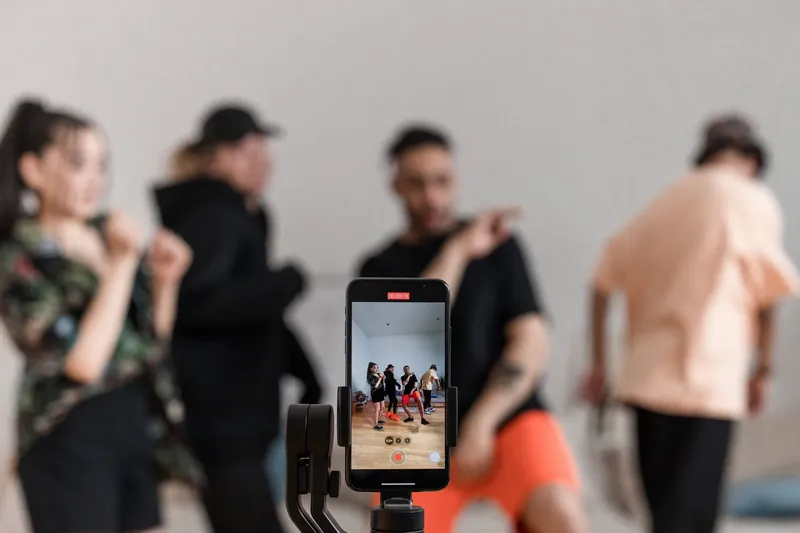
To post a TikTok video on YouTube Shorts, upload the video file to YouTube, not the TikTok link. YouTube can't pull a video from TikTok. Get a clean copy of your own TikTok (ideally the file you edited, saved before posting), check that it is vertical or square and no longer than 3 minutes, swap out any TikTok library music, then in the YouTube app tap Create → Upload a video, or on a computer open YouTube Studio and click Create → Upload videos.
That covers the mechanics. Whether the Short actually does well depends on three things TikTok creators usually get wrong: the watermark, the music and the text on screen. This guide goes through each, for one video or a few months of backlog.
It is about reposting your own TikToks. Re-uploading other creators' videos is a copyright problem, and YouTube lists "reuploading other creators' content from YouTube or other platform" among the Shorts views that can't earn revenue.
Pick a method by what you have
| What you have | What to do |
|---|---|
| The original export from CapCut, your camera roll or a desktop editor | Upload that file as a Short (Step 4 or 5). Full quality, no TikTok marks. |
| A TikTok you haven't posted yet | Turn on Save to device on the Post screen, or tap Save while editing, so you keep a local copy. |
| A TikTok that only exists on TikTok now | Use Share → Save video. Expect a TikTok watermark on the file; re-cut from your raw footage if you still have it. |
| Weeks of TikToks to move | Gather the files on a computer and upload up to 15 at a time in YouTube Studio, then schedule them. |
| A TikTok longer than 3 minutes | Trim it first, or tap Edit into a Short in the YouTube app's upload flow. Over 3 minutes, it uploads as a regular video. |
| A duet, stitch or repost of someone else's video | Don't move it. It contains another creator's content. |
Upload your TikTok files to Short.now's TikTok to YouTube Shorts converter. It cleans up the TikTok watermark, regenerates the captions in a YouTube style, lets you trim and preview, then publishes to your channel or hands you the file. Three free videos a month, no watermark, no credit card.
What changes between TikTok and Shorts
A TikTok and a Short look like the same thing: a vertical video with captions and a sound. The differences are in the rules around the video, and each one can sink a repost.
| Setting | On TikTok | On YouTube Shorts |
|---|---|---|
| Length | Can run longer than 3 minutes | Up to 3 minutes; anything longer is a regular video |
| Shape | 9:16 vertical is standard | Square or vertical |
| Music | TikTok's sound library, licensed for use on TikTok | Use YouTube's Shorts audio library or your own audio |
| On-screen interface | Caption, buttons and username in TikTok's positions | Title, channel name and buttons in YouTube's positions |
| Text people read | A caption with hashtags, written for the For You feed | A title of up to 100 characters that search also reads |
YouTube decides what is a Short by shape and length, not by a special upload button. Its help center says that videos uploaded on or after October 15, 2024 "with a square or vertical aspect ratio up to three minutes in length" are categorized as Shorts. A TikTok that runs 3 minutes and 5 seconds will land with your long-form videos.
Pixel sizes, aspect ratios and file limits are in our TikTok video size guide and YouTube Shorts size guide.
Step 1: Get a clean copy of your TikTok
The file you start from decides how the Short looks and whether it carries TikTok's branding. Work down this list and use the first option you have.
Best: the file you edited
Many TikToks are cut in CapCut or a desktop editor and then uploaded. If so, the export is still on your phone or computer, or you can export the project again. It has full quality, your original audio and no TikTok marks. It is also the only option that gives you a version without the text and stickers you added inside TikTok, which matters in Step 3.
Before you post: save a copy on your device
If you build TikToks inside the app, make TikTok save a local copy every time. TikTok's help center describes two ways:
- On the Post screen, tap More options and turn on Save to device.
- While editing, tap Save on the side panel to download that single video.
TikTok itself recommends downloading your videos before you post so you have offline copies. Turn the setting on once and every future TikTok is ready to repost.
Already posted: save the video from TikTok
For a TikTok that is already live, open it, tap the Share button on the side of the video, then tap Save video. If you don't see the option, downloads are turned off for that video.
The catch: videos downloaded from the TikTok app are watermarked. On YouTube that means another platform's logo on your Short, and viewers notice. Treat this copy as a last resort. If the TikTok was simple (one take, your own voice), re-cutting it from the raw clip still in your camera roll is often quicker than fixing the watermarked version. Cropping or blurring the logo usually leaves a visible mark and can cut into your framing.
Step 2: Replace TikTok music
This is the step most reposts skip, and the one that gets them blocked. Sounds you added from TikTok's library are licensed for TikTok. TikTok's Commercial Music Library terms are explicit: "You may only post or share videos that include Commercial Sounds within TikTok," and the outside uses they don't permit include "posting videos on third party digital platforms."
So before you upload, remove the TikTok sound. If your file came from your own editor, export it without the track. Then add music in the YouTube app's editor from the Shorts audio library, or keep only your own voice and audio. YouTube says that, depending on the song, you can add up to 90 seconds of library music to a Short of up to 3 minutes, and the editor shows how many seconds a track will cover.
Be careful with Shorts over one minute. YouTube's help pages currently disagree: the page on three-minute Shorts says a Short longer than one minute "with an active copyright claim of any type" is blocked globally, while the newer "Create YouTube Shorts" page says such Shorts are no longer automatically blocked and may stay playable. Either way, a long Short with claimed music is a risk you don't need. Our Academy lesson on music and copyright for creators covers the rules in more depth.
Step 3: Make the video fit Shorts
Trim anything over 3 minutes
Cut long TikToks before you upload. If you forget, the YouTube app catches it: for videos longer than 3 minutes, it offers Edit into a Short to trim the video to 3 minutes or less. Cut to one complete idea rather than chopping the ending mid-sentence. Our guide to how long YouTube Shorts can be explains when a shorter cut beats using the full limit.
Check text against YouTube's buttons
Captions and text placed for TikTok's layout can end up under YouTube's title, channel name or buttons. Before uploading, drop the video or a frame into our YouTube Shorts safe zone checker to see what YouTube's title, channel name and buttons can cover. If something important is covered, move the text up in your editor and export again.
Text and stickers you add in TikTok's editor become part of the saved video, so you can't move them after the fact. This is where reposting a batch turns into real work: re-captioning twenty TikToks by hand takes an afternoon. Short.now's TikTok to Shorts tool regenerates word-by-word captions styled for YouTube, so you review them instead of retyping them.
Remove TikTok-only calls to action
"Follow for part 2", "link in bio" and TikTok sticker prompts make no sense on YouTube. If they are spoken or on screen, trim them out or re-export without them.
Step 4: Upload the TikTok as a Short from your phone
On Android or iPhone, in the YouTube app:
- Tap Create, then Upload a video.
- Choose your TikTok file. A square or vertical video of up to 3 minutes opens in a trim editor: drag the ends of the bar to set the start and end. Anything outside the box won't be in the Short.
- Tap Next to open the editor and add text, filters or audio.
- Tap Next again to add details: a title of up to 100 characters and the privacy setting.
- Choose the audience: "Yes, it's made for kids" or "No, it's not made for kids".
- Tap Upload.
Pick the thumbnail while you are in the app. YouTube lets you choose a frame as the Short's thumbnail, and you can only edit a Short's thumbnail in the YouTube app, not in YouTube Studio. The steps are in our guide to adding a thumbnail to YouTube Shorts.
Step 5: Upload from a computer (best for a backlog)
If you are moving many TikToks, collect the files on your computer and use YouTube Studio:
- Sign in to YouTube Studio.
- In the top-right corner, click Create, then Upload videos.
- Select your files, each up to 3 minutes and square or vertical. You can choose up to 15 at a time.
- Click Edit draft on each one to finish the title, description and audience before publishing.
Don't publish fifteen Shorts in one afternoon. Schedule them across days so each one gets its own test in the feed. Our guide to the best time to post YouTube Shorts helps you pick the slots.
Step 6: Rewrite the caption as a YouTube title
A TikTok caption is written for a feed. A YouTube title is also read by search, and it is the first thing people see under your Short.
- Title: say what happens in the video in the words someone would search, within 100 characters. "pov: day 3 of the challenge" works on TikTok; "Fixing a squeaky door hinge in 30 seconds" works on YouTube.
- Description: a sentence or two that expands on the title, plus a link to a related video or playlist. Our YouTube Shorts description guide shows where viewers see it.
- Hashtags: keep a few that describe the topic. Drop #fyp and other TikTok-only tags; they mean nothing on YouTube.
Duets, stitches and other people's videos
A duet or stitch includes another creator's video, and a repost is someone else's work entirely. Posting them to YouTube is re-uploading content you don't own. Besides the copyright risk, YouTube's Shorts monetization policy lists non-original Shorts, including reuploads of other creators' content from other platforms and "compilations with no original content added", as ineligible for revenue sharing.
If a duet had a strong reaction from you, record a new Short that stands on its own, or ask the original creator for permission and credit them.
Posting to TikTok and YouTube at the same time
The most reliable workflow is not to treat TikTok as the source at all. Keep one clean master file per video (no platform watermark, no library music, text inside both apps' safe zones) and upload it to each app. Then nothing needs fixing afterwards: no watermark to hide, no claim to dispute, no caption under a button.
If you shoot inside TikTok, the Save to device setting from Step 1 gives you that master automatically. When you place text, check the same frame in the safe zone checker for TikTok and for Shorts, so it clears both layouts. If you are still deciding where to spend most of your effort, our comparison of YouTube Shorts vs TikTok vs Reels lays out the differences, and the same workflow for Instagram is in how to upload Instagram Reels to YouTube Shorts.
Common mistakes when moving TikToks to Shorts
- Uploading the watermarked download when the original exists. Check CapCut and your camera roll first.
- Leaving the TikTok sound in. It is licensed for TikTok, not YouTube, and invites a claim.
- Videos just over 3 minutes. They upload as long-form, not as Shorts. Trim first.
- Captions hidden under YouTube's buttons. Check the safe zone before uploading.
- Pasting the TikTok caption as the title. Write a title that says what the video is about.
- Publishing the whole backlog in a day. Spread it out.
- Moving duets, stitches and reposts. They contain other people's content.
If your TikToks are cut from podcasts, streams or long YouTube videos, skip the repost step. Short.now finds the strongest moments in the full video and turns them into captioned 9:16 clips you can post as Shorts, TikToks or Reels. Three free videos a month, no watermark, no credit card.
Frequently Asked Questions
Save the TikTok to your phone or computer, ideally the original edit or a copy saved before posting, then upload the file in the YouTube app (Create → Upload a video) or in YouTube Studio (Create → Upload videos). If it is square or vertical and no longer than 3 minutes, YouTube treats it as a Short.
No. YouTube uploads files, not TikTok links, so you need the video saved on your device first. Turn on Save to device on TikTok's Post screen and every new TikTok is kept locally, ready to upload to YouTube.
Use the file you edited, or a copy saved before you posted: turn on Save to device under More options on the Post screen, or tap Save while editing. Videos downloaded from the TikTok app after posting are watermarked, so use those only when nothing else exists.
Don't rely on it. TikTok's sound library is licensed for TikTok, and its Commercial Music Library terms say those sounds may only be posted within TikTok. Remove the TikTok sound and add music from YouTube's Shorts audio library or use your own audio.
YouTube only categorizes a video as a Short when it is square or vertical and 3 minutes or shorter. A TikTok that runs a few seconds over 3 minutes, or a horizontal one, lands in your long-form videos. Trim it and upload again, or use Edit into a Short in the YouTube app.
Reposting videos you made yourself is fine. Re-uploading other people's TikToks, including duets and stitches built on their videos, needs their permission, and YouTube's Shorts monetization policy excludes reuploads of other creators' content from other platforms.
Ready to stop editing and start publishing?
Short.now turns your long videos into scroll-stopping shorts automatically — in under 2 minutes.
Get started free 3 free videos every month · No credit card needed