
TikTok Captions: How to Add, Edit and Turn Them On
How to add and edit auto captions on TikTok before posting, change a post caption after posting with Edit post, and turn captions on or off as a viewer.
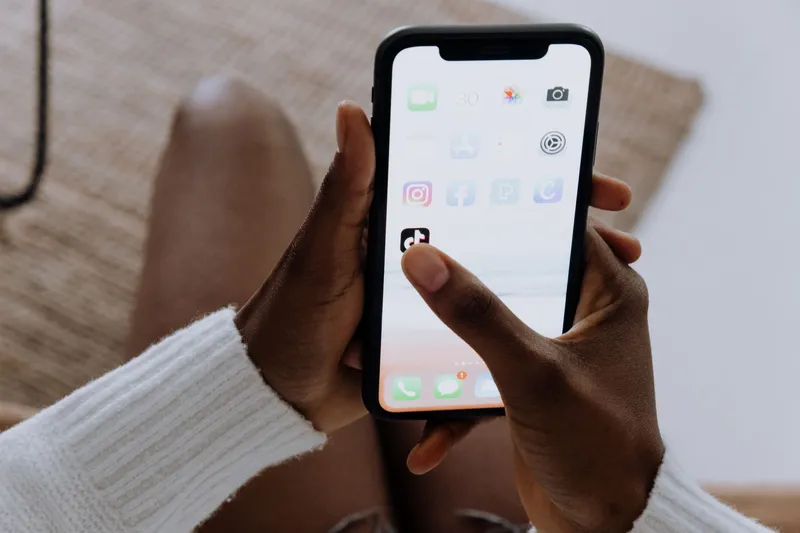
"Captions" on TikTok means two different things, and the steps are different for each. The words that appear on the video (subtitles) are added on the editing screen: record or upload a clip, tap Captions in the right-hand toolbar, fix any wrong words, tap Save, then post. The text under the video (the post caption, sometimes called the description) is written on the Post screen, and after posting it can only be changed through Edit post in the video's ... menu, if your app shows that option.
This guide covers both: how to add and edit auto captions before you post, how to change the post caption after you post, how viewers turn captions on and off, and what to do when the button you need isn't there. TikTok moves its menus around often, so where a label differs by app version, the guide says so.
Which caption do you mean?
| You want to | Where it happens | Can you change it after posting? |
|---|---|---|
| Add subtitles of what you say in the video | Editing screen → Captions | No. Captions become part of the posted video. Fix them before you tap Post. |
| Fix wrong words in the auto captions | Captions panel → tap a line (or the pencil icon) → Save | No, same as above. |
| Add your own text, like a hook or a label | Editing screen → Text (the Aa icon) | No. On-screen text is part of the video. |
| Write or change the text under the video | Post screen → caption field | Sometimes. Use ... → Edit post if it appears; otherwise repost. |
| Turn captions on or off while watching | Tap the captions on the video, or Settings and privacy → Accessibility | Yes, any time. This only changes what you see. |
Upload your clip to Short.now's AI caption generator and get word-by-word animated captions you can edit and style, burned into the video before it goes to TikTok. Three free videos a month, no watermark, no credit card.
How to add auto captions to a TikTok video
Auto captions transcribe the speech in your video and show it as subtitles. TikTok introduced them in April 2021, starting with American English and Japanese, and they now run as part of the normal editing flow. The steps on iPhone and Android are the same:
- Tap + at the bottom of the screen, then record a video or tap Upload to pick one from your gallery.
- On the editing screen, find the toolbar on the right and tap Captions. If you don't see it, tap the small down arrow at the bottom of the toolbar to show more tools.
- Wait a few seconds while TikTok transcribes the audio. The captions appear on the preview.
- Read every line. If something is wrong, edit it (next section) before you continue.
- Tap Save, then Next, write your post caption, and tap Post.
Captions only work when there is clear speech. Music-only clips, heavy background noise or several people talking over each other usually produce no captions or a lot of errors. TikTok sets the caption timing for you; the in-app editor does not let you move a line to a different moment.
If the Captions button is missing
- Expand the toolbar. The tools on the right are collapsed by default on many phones.
- Update the app. Editing tools change between versions, and an old build may not have the current layout.
- Check that the clip has speech. Auto captions need spoken audio to transcribe.
- Check the spoken language. Auto captions launched in a few languages and have been extended since, but not every spoken language is covered.
If none of that helps, add captions outside TikTok and upload a video that already has them burned in (see the last method below).
How to edit captions on TikTok before posting
Auto captions get names, brand terms and slang wrong more often than everyday words, so check them every time. You can edit them on the same screen where they were generated:
- After TikTok generates the captions, tap the line you want to change, or tap the pencil icon next to the Captions header to open the full list.
- Correct misspelled or misheard words. You can also break a long line into shorter ones so it is easier to read.
- Tap Save. Play the preview once more from the start to check the result.
- Tap Next and post.
This is your only chance. TikTok treats captions as part of the posted video, and Edit post (below) changes the text under the video, not the video itself. If you spot a mistake later, the fix is to correct the captions in a new upload.
Editing your own on-screen text
Text you type yourself is a separate layer from auto captions. On the editing screen, tap Text (the Aa icon), type, and choose a font, colour and style. To change it, tap the text on the preview to reopen its options, and drag it to move it. The text-to-speech option that reads your text aloud is in the same menu, though it isn't available in every region.
Keep on-screen text and captions out of the bottom of the frame. TikTok draws your username, post caption and sound name there, and the like, comment and share buttons sit on the right. On a 1080 × 1920 video, TikTok's ad safe-zone template keeps the bottom 660 px and a 180 px column on the right clear. Check your layout with the TikTok safe zone checker, and see TikTok video size and dimensions for the frame itself.
How to edit a TikTok caption after posting
For the text under the video, TikTok has been adding an Edit post option. It has rolled out gradually, so not every account, region or video has it yet.
- Open your profile and tap the video.
- Tap the ... (three dots) on the right side, or press and hold the video.
- In the bottom row of options, swipe left if needed and tap Edit post.
- Change the caption, hashtags or mentions, then save. The post updates in place and keeps its views, likes and comments.
What Edit post can't do: replace the video itself, or change the captions and text that are part of the video. Several guides also report that the option only appears on recent posts, roughly the last seven days, and that edits may be limited. TikTok hasn't published those limits in a help article we could open, so treat them as reports, not rules. If the option is there, use it promptly.
If Edit post isn't available
The older workaround is to repost:
- On the video, tap ... and choose Save video (or use your original export if you still have it, which is the better file).
- Copy the old caption text so you don't have to retype it.
- Upload the video again with the corrected caption.
- Delete the original, or set it to private if you want to keep its stats visible to yourself.
The cost is real: the new post starts at zero views, likes and comments. For a small typo on a video that is already doing well, leaving it is usually the better choice. For a wrong link, a wrong product name or a missing credit, reposting early is worth it.
How long a TikTok caption can be
TikTok raised the post caption limit to 4,000 characters in August 2023, up from 2,200. Scheduling tools that post through TikTok's API may still be capped at 2,200, so very long captions are safest written in the app. Only the first line or two show before viewers tap to expand, so put the main point and the words people would search for at the start. For what to actually write, see the lesson on titles, captions and hashtags.
How to turn captions on or off as a viewer
Since 2022, TikTok can show auto-generated captions on videos even when the creator didn't add them, and it can translate captions into other languages. You control whether you see them.
For one video
- To hide: tap the caption box on the video, then tap Hide captions.
- To show again: tap the small caption box that stays on screen.
Hiding captions on one video usually hides them on the next videos in your feed too, until you turn them back on.
For all videos
- Go to Profile, tap the menu icon in the top right, then Settings and privacy.
- Open Accessibility.
- Turn the captions switch on or off. It has been labelled Always show captions on Android and Always show auto-generated captions on iPhone; the wording can change between app versions.
On the TikTok website you can hide captions on a single video the same way, by clicking the captions and choosing Hide captions, but the account-wide switch is in the app.
Add captions outside TikTok (more control, any platform)
TikTok's built-in captions are fine for a quick post. They fall short when you want a specific look, word-by-word highlighting, captions in another language, or the same captioned video on YouTube Shorts and Instagram Reels too. In those cases, caption the video first and upload a finished file.
- Upload the video to a caption tool. In Short.now you can drop in a file or paste a YouTube link.
- Let it transcribe the speech, then fix any errors line by line in the editor.
- Pick a style: font, size, colour, position and animation. Keep the captions in the safe area above TikTok's bottom overlay.
- Export with the captions burned in, so they show on every platform and player.
- Upload that file to TikTok. Leave TikTok's own auto captions off for this video so you don't get two sets of subtitles.
Burned-in captions can't be turned off by viewers (the term for that is open captions; see subtitles vs closed captions for how they differ from caption tracks), so check the spelling before you export. The upside is that they look the same everywhere, which matters if you also post the clip as a Short; the steps for that are in how to post TikTok videos on YouTube Shorts. For a broader look at captioning tools and formats, see how to add captions to videos automatically.
Common mistakes with TikTok captions
- Posting without reading the auto captions. Misheard names and brand terms stay on the video forever.
- Burning in captions and then turning on TikTok's too. Viewers see two overlapping subtitle tracks.
- Putting text at the very bottom. The post caption and sound name cover it.
- Waiting days to fix a caption typo. If Edit post only works on recent posts, the window may close.
- Reposting a successful video over a tiny typo. You lose all its engagement for a cosmetic fix.
- Hiding the main point below the fold. Only the start of the post caption shows before "more".
If your TikToks come from long YouTube videos, paste the link into Short.now. It picks TikTok-ready moments, exports them in 9:16 and adds word-by-word captions you can edit before you download. Three free videos a month, no watermark, no credit card.
Frequently Asked Questions
For your own video, tap Captions in the right-hand toolbar on the editing screen before you post, check the text and tap Save. To see captions on other people's videos, go to Profile, the menu icon, Settings and privacy, then Accessibility, and turn the captions switch on. You can also tap the small caption box on a single video to show its captions.
The text under the video can be changed with Edit post in the video's three-dot menu, where TikTok has rolled that option out. Several guides report it only works on recent posts, roughly the last seven days. Captions that are part of the video itself can't be edited after posting; you would need to upload a corrected version.
Either your app doesn't have the Edit post option yet, or the post is older than the window in which edits are allowed. Update the app and check the three-dot menu again. If the option still isn't there, save the video, repost it with the corrected caption, and remove the original.
Record or upload a video, then tap Captions on the right side of the editing screen; tap the down arrow first if the toolbar is collapsed. TikTok transcribes the speech, and you can tap any line or the pencil icon to fix words before tapping Save. For your own text, use the Text tool (Aa) instead.
On the editing screen, the Captions tool turns speech in your video into subtitles. While watching, the small caption box on a video lets you hide or show that video's auto-generated captions. Both are separate from the post caption, which is the text written under the video.
The post caption can be up to 4,000 characters in the app, a limit TikTok raised from 2,200 in 2023. Some scheduling tools that post through TikTok's API are still capped at 2,200 characters. Only the first line or two show before viewers expand it, so lead with the main point.
Ready to stop editing and start publishing?
Short.now turns your long videos into scroll-stopping shorts automatically — in under 2 minutes.
Get started free 3 free videos every month · No credit card needed