
How to Add Chapters to YouTube Videos (Manual and Automatic)
Add chapters to any YouTube video on a computer or phone, use the exact timestamp format YouTube accepts, control automatic chapters and fix chapters that do not show.
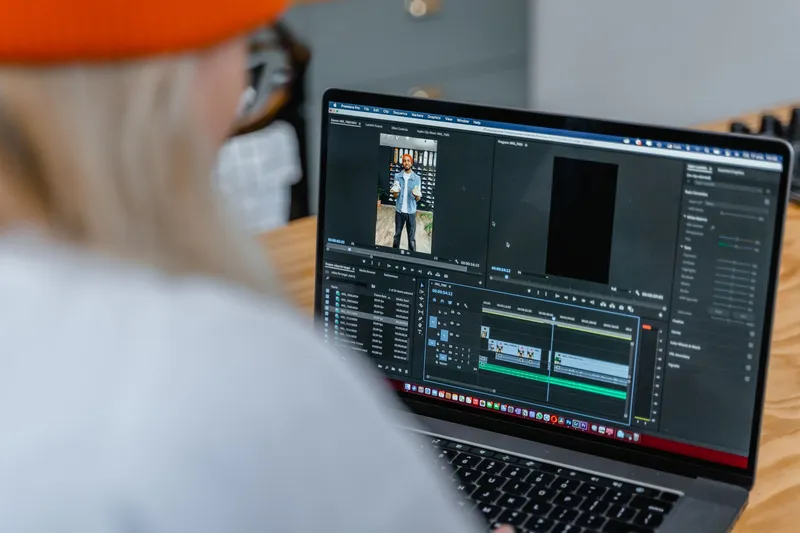
To add chapters to a YouTube video, type a list of timestamps and titles into the video's description, starting with 00:00, then save. YouTube needs at least three timestamps in ascending order, and every chapter must be at least 10 seconds long. You can do this in YouTube Studio on a computer, in the YouTube Studio app, or in the YouTube app, before or after the video is published. If you would rather not write them, leave "Allow automatic chapters" switched on and YouTube may generate chapters for you.
This guide covers both methods step by step, the exact format that makes chapters activate, how to find good timestamps quickly, how to turn automatic chapters on or off, and what to check when chapters do not show up.
Pick a method
| Your situation | Best method | Where to do it |
|---|---|---|
| You want chapter titles you control | Manual timestamps in the description | YouTube Studio: Content, click the video, Description |
| Video is already live and you only have your phone | Edit the description in an app | YouTube Studio app (Content, video, Edit) or YouTube app (Your videos, More, Edit) |
| You do not want to write chapters at all | Automatic chapters | Studio: video details, Show more, Automatic chapters |
| You have a back catalogue without chapters | Bulk edit automatic chapters, then add manual ones to your most-watched videos | Studio: Content, select videos, Edit, Automatic chapters |
| You do not want chapters on a video | Remove the timestamps and untick "Allow automatic chapters" | Studio: video details, Show more |
One rule decides which chapters viewers see: chapters you type in the description override automatic chapters. If your list is valid, YouTube uses it. If you delete it, automatic chapters can take over again, as long as the setting is on.
Short.now's YouTube Chapters Generator transcribes your video, finds where each topic starts and gives you a ready-to-paste list that starts at 00:00. Free to start, no watermark, no credit card.
The chapter format YouTube accepts
Chapters are plain text in the description. Each line is a timestamp followed by a title. A list like this works:
00:00 Intro
00:42 What you need
02:10 Setting up the camera
05:35 Recording the first take
09:18 Common mistakes
12:04 Final result
YouTube's requirements, from its Video Chapters help page:
- The first timestamp must be 00:00. A list that starts at 00:05 or with your first real topic will not turn into chapters.
- At least three timestamps. Two sections are not enough.
- Ascending order. Every timestamp must be later than the one above it.
- Each chapter at least 10 seconds long. Two timestamps closer than 10 seconds apart break the rule.
A few practical habits that keep lists clean:
- Put the list on its own lines, one chapter per line, with nothing before the timestamp.
- Keep titles short and specific. "Setting up the camera" tells viewers more than "Part 2".
- Write titles in the words people search for. They show up on the progress bar, and Google can use your description timestamps as "key moments" in search results (more on that below).
- For videos longer than an hour, include the hour in the timestamp, for example
1:05:30 Q&A. - Keep the whole description under YouTube's 5,000-character limit. A chapter list rarely gets close, but long descriptions with links and credits can.
How to add chapters on a computer (YouTube Studio)
This works for a video you are uploading and for one that has been live for years.
- Sign in to YouTube Studio.
- From the left menu, select Content.
- Click the video's title or thumbnail to open its details.
- In the Description box, add your list of timestamps and titles, starting with 00:00.
- Click Save.
During an upload, the same Description box sits on the Details step, so you can paste the list before you publish. If you add a "Correction:" section to the description, YouTube's video settings help says it should come after any video chapters.
How to add chapters on your phone
There is no separate chapters screen on mobile. You edit the description, the same as on a computer. YouTube documents two routes for both Android and iPhone/iPad:
YouTube Studio app
- Open the YouTube Studio app.
- From the bottom menu, tap Content.
- Select the video you want to edit.
- Tap Edit.
- Add the timestamps to the description and tap Save.
YouTube app
- Open the YouTube app and tap your profile picture.
- Tap Your videos.
- Next to the video, tap More, then Edit.
- Add the timestamps to the description and tap Save.
Typing a long list on a phone is where mistakes creep in, such as a missing 00:00 line or two timestamps swapped. If you can, write the list in a notes app first, check the order, then paste it in.
How to find the timestamps quickly
Writing the list is easy. Finding where each topic starts is the slow part, especially in a 40-minute tutorial or a two-hour podcast. Three ways to do it, from slowest to fastest:
1. Scrub the video
Play the video at higher speed, pause each time the topic changes and note the time. This is fine for a 10-minute video with five sections. For anything longer, it eats the time you saved by not editing.
2. Use YouTube's own transcript
If the video has captions, including auto-generated ones, YouTube shows a transcript with a timestamp on each line. On a computer, open the video, expand the description and click Show transcript. Skim the text for the sentences where you introduce a new topic ("Next, let's set up…") and copy those times. Our YouTube transcript guide and tool walks through this on desktop and mobile.
3. Generate the list
For long videos or a whole channel, this is the step worth automating. The YouTube Chapters Generator segments the video by topic, lets you rename or merge chapters and adjust timecodes, and formats the list to YouTube's rules (00:00 first, at least three chapters, each 10 seconds or longer), so you only review and paste.
Whichever way you use, watch the first few seconds of each chapter before you save. A chapter that starts mid-sentence feels broken to viewers even if YouTube accepts it.
Automatic chapters: turn them on or off
YouTube can create chapters for you. According to its help page, the "Allow automatic chapters" box is checked by default for all new uploads, so many creators already have it on without knowing.
Turn on automatic chapters for one video
- In YouTube Studio, select Content and click the video.
- Click Show more.
- Under Automatic chapters, select Allow automatic chapters.
- Click Save.
Turn off automatic chapters for one video
Follow the same steps and unselect Allow automatic chapters, then save.
Turn them off (or on) for many videos at once
In Content, check the boxes next to the videos, select Edit, choose Automatic chapters, set the option and select Update videos.
Turn them off for all future uploads
- In YouTube Studio, click Settings.
- Click Upload defaults, then Advanced settings.
- Uncheck Allow automatic chapters (when available and eligible).
- Click Save.
Should you rely on automatic chapters?
Automatic chapters cost nothing, but you do not control them. YouTube says not all videos are eligible and not all eligible videos will get automatic chapters, so you cannot count on them appearing. You also cannot choose the titles or where sections begin. A reasonable split:
- Leave automatic chapters on as a fallback for short, casual uploads where you will not write a list.
- Write manual chapters for tutorials, reviews, podcasts, interviews and anything people come back to for one specific part. Those are the videos where viewers jump around, and where clear titles matter.
- Turn automatic chapters off if YouTube's sections split your video in odd places, for example in a story-driven video where you want people to watch from start to finish.
Why your chapters are not showing
When the timestamps sit in the description but no chapters appear on the progress bar, go through this list. Most problems are one of the first four.
| Problem | Fix |
|---|---|
| The list does not start at 00:00 | Add a first line such as 00:00 Intro |
| Fewer than three timestamps | Split the video into at least three sections |
| A chapter is shorter than 10 seconds | Merge it with the chapter before or after it |
| Timestamps out of order | Sort them from earliest to latest |
| Your account does not have chapter access yet | "Add chapters" is an advanced feature. Check Settings, Channel, Feature eligibility in YouTube Studio |
| The channel has an active strike, or the video may be inappropriate for some viewers | YouTube says chapters are not available in these cases |
| The list is in a comment, not the description | YouTube's documented method uses the description. Move the list there |
| You expected automatic chapters | Check that "Allow automatic chapters" is ticked and that the description has no timestamp list overriding it. Not every video gets them |
About chapter access
YouTube's feature access page lists "Add chapters" among the advanced features. Active creators with enough channel history usually qualify automatically. If you want access right away, YouTube lets you verify your identity with a valid ID or a video, though it notes that ID and video verification is not available to all creators. To see what you have, go to YouTube Studio, Settings, Channel, Feature eligibility, and look for "Enabled" next to each feature.
Chapters and Google Search
Chapters do more than help viewers on YouTube. Google's video documentation says that for videos hosted on YouTube, Google Search may enable "key moments" based on the video description, and that you can specify the exact timestamps and labels in the description. When you do, Google says it will prefer that information over its own automatic detection.
In practice, that means good chapter titles do double duty: they help viewers jump to the part they need, and they give Google labelled segments it can show in search results. Write titles the way someone would phrase the question, such as "How to clean the filter" rather than "Step 3".
From chapters to Shorts
A chapter list is also a map of your best clip candidates. Each chapter is a self-contained topic with a clear start, which is exactly what a Short needs. If a 20-minute tutorial has eight chapters, you already have eight starting points for vertical clips. Our guide on how to make YouTube Shorts from long videos covers the editing side, and how many Shorts you can get from one long video helps you set a realistic number.
Shorts also have their own way to send viewers back to the full video: with advanced feature access, you can add a Related Video link to a Short, which shows in the Shorts player. Point it at the long video, and a viewer who liked the clip lands on the chapter-split original.
Upload the long video or paste its link into Short.now. It picks the strongest self-contained moments, adds captions and reframes them to 9:16. 3 free videos every month, no watermark, no credit card.
Common mistakes
- Starting at the first real topic. The 00:00 line is mandatory even if the first seconds are just an intro.
- Too many tiny chapters. Splitting a 6-minute video into 15 sections makes the progress bar unreadable and risks the 10-second rule. Aim for sections a viewer would actually want to skip to.
- Vague titles. "Part 1, Part 2, Part 3" wastes the space that viewers and Google read.
- Forgetting the list after re-editing. If you trim the video in YouTube's editor, check that the timestamps still match the new cut.
- Writing chapters but leaving them in a draft. Changes apply only after you click Save.
Frequently Asked Questions
Yes. Open the video in YouTube Studio (Content, then click the video) or in the YouTube Studio app, add the timestamp list to the description and save. You do not need to re-upload, and the change applies to the live video.
One chapter per line in the description: a timestamp followed by a title, for example "00:00 Intro". The first timestamp must be 00:00, you need at least three timestamps in ascending order, and each chapter must be at least 10 seconds long.
Type them into the video's description, either while uploading or later in YouTube Studio or the YouTube app. A list that follows YouTube's chapter rules turns into chapters on the progress bar. To find the times, use YouTube's Show transcript panel or a chapters generator instead of scrubbing the video.
In YouTube Studio, open the video, click Show more and select Allow automatic chapters under Automatic chapters, then save. The box is checked by default for new uploads. YouTube says not every video is eligible, and not every eligible video gets automatic chapters.
For one video, open it in YouTube Studio, click Show more and unselect Allow automatic chapters. For all future uploads, go to Settings, Upload defaults, Advanced settings and uncheck Allow automatic chapters (when available and eligible). Chapters you type in the description always override automatic ones.
Usually the list breaks a rule: it does not start at 00:00, has fewer than three timestamps, is out of order or has a chapter under 10 seconds. If the format is right, check Feature eligibility in YouTube Studio settings, because adding chapters is an advanced feature, and note that chapters are unavailable on channels with active strikes.
Ready to stop editing and start publishing?
Short.now turns your long videos into scroll-stopping shorts automatically — in under 2 minutes.
Get started free 3 free videos every month · No credit card needed