
In this lesson (9 sections)
Key takeaways
- To go from 16:9 to 9:16 you keep a vertical window about a third of the original width. Everything outside it is lost, so the window has to follow the subject.
- Pick the layout by content: tracked crop for one speaker, split screen for two, blurred background when the whole frame matters.
- A 1080p source gets upscaled about 1.8 times when cropped to full-screen vertical. Film in 4K if you know you will crop.
- YouTube only counts square or vertical videos as Shorts, so a horizontal upload stays a regular video.
- Put captions and key action in the middle of the frame, away from the app buttons.
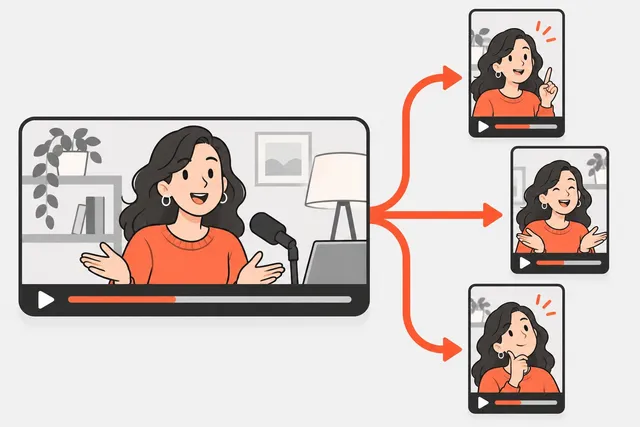
To turn a horizontal video into vertical, you crop a 9:16 window out of the 16:9 frame and move that window so the person or action stays in it. When one window cannot hold what matters, you switch layouts: a split screen for two speakers, or the full frame on a blurred background. Then export at 1080x1920.
This lesson covers why vertical matters, the crop math, four layouts and when to use each, and how to do it in an editor, with a free command-line tool, or with AI speaker tracking.
Why you can’t just upload the horizontal file
A 16:9 video on a phone held upright fills less than a third of the screen. It looks small, and it signals that the video was made for somewhere else.
There is also a rule on YouTube: it categorizes videos with a square or vertical aspect ratio, up to three minutes long, as Shorts. A 16:9 upload stays a regular long-form video, whatever its length. TikTok’s own creative guidance for ads also tells you to orient vertically at 9:16 and keep content inside the UI safe zone, which is a good rule for organic posts too.
The crop math
Going from 16:9 to 9:16 means keeping a narrow vertical slice of the frame. The height stays, the width shrinks.
| Source | Vertical window | Share of width kept | Result at 1080x1920 |
|---|---|---|---|
| 1920x1080 (1080p) | about 608x1080 | about 32% | Upscaled about 1.8x, a bit soft |
| 2560x1440 (1440p) | about 810x1440 | about 32% | Upscaled about 1.3x, fine |
| 3840x2160 (4K) | about 1215x2160 | about 32% | Downscaled, sharp |
Two things follow from this:
- About two-thirds of the frame is thrown away. If your subject moves, a fixed crop will lose them. The window has to follow.
- Resolution matters. If you know you will crop, film in 4K. From 1080p the result is usable, but faces and text look softer.
Four layouts and when to use them
| Layout | What it looks like | Best for | Watch out for |
|---|---|---|---|
| Tracked crop | Full-screen vertical, window follows the speaker | One person talking, interviews where people take turns | Jittery tracking, cutting off gestures |
| Split screen | Two crops stacked, one on top of the other | Two people talking at once, reactions, gameplay plus face cam | Faces get small; leave room for captions |
| Blurred background | Whole 16:9 frame in the middle, a blurred copy fills the rest | Slides, wide shots, screen demos where the whole frame matters | Small picture; works less well for faces |
| Screen plus face | Screen recording on top, speaker below (or the reverse) | Tutorials, software demos, commentary | Text on screen may be too small to read |
Tracked crop
This is the default for talking content. The window sits on the speaker’s face, with the eyes about a third of the way down the frame. In an interview, it jumps to whoever is talking. Jump cuts (a hard switch) usually look cleaner than a slow pan between two people.
Split screen
When both people matter at once, such as a debate or a laugh, stack them. Crop each person to a near-square box and place one above the other, so each takes half the 1080x1920 frame. Put captions on the line between the two boxes.
Blurred background
Scale the full horizontal frame to the width of the vertical frame, center it, and fill the top and bottom with a blurred, zoomed copy of the same video. It is the easiest layout and the only honest one for slides or wide shots, but the picture is small. YouTube Studio’s own Clips and Shorts tool uses a similar look: YouTube says the final Short shows the empty space as a blurred crop.
How to do it in an editor
Most editors work the same way:
- Create a vertical project at 1080x1920, or change the project or sequence aspect ratio to 9:16.
- Drop in the horizontal clip and scale it up until it fills the frame (about 178% for a 1080p clip in a 1080p-wide project).
- Position it so the subject is in the window.
- Keyframe the position wherever the subject moves or the speaker changes. For an interview, cut the clip at each speaker change and reposition each piece instead.
- Export at 1080x1920, H.264, at the frame rate you filmed in.
Many editors have an automatic version of steps 3 and 4. In Premiere Pro it is called Auto Reframe, in DaVinci Resolve Studio (the paid version) Smart Reframe, and in Final Cut Pro Smart Conform. CapCut also has an auto reframe option. They all detect the subject and move the window for you; check the result and fix any frames where it drifts.
How to do it free with FFmpeg
If you are comfortable with a terminal, the free tool FFmpeg can reframe without opening an editor. These commands were tested on a 1920x1080 file.
Center crop to full-screen vertical:
ffmpeg -i input.mp4 -vf "crop=ih*9/16:ih,scale=1080:1920" -c:a copy vertical.mp4
Full frame on a blurred background:
ffmpeg -i input.mp4 -filter_complex "[0:v]split[a][b];[a]scale=1080:1920:force_original_aspect_ratio=increase,crop=1080:1920,boxblur=20[bg];[b]scale=1080:-2[fg];[bg][fg]overlay=(W-w)/2:(H-h)/2" -c:a copy blurred.mp4
Two speakers stacked (left half on top, right half below):
ffmpeg -i input.mp4 -filter_complex "[0:v]split[l][r];[l]crop=960:854:0:113,scale=1080:960[top];[r]crop=960:854:960:113,scale=1080:960[bot];[top][bot]vstack" -c:a copy stacked.mp4
A center crop only works if the speaker stays in the middle. For anything that moves, use an editor or a tracking tool.
Speaker tracking with AI
For podcasts and interviews, doing the window by hand means a keyframe or cut at every speaker change, which adds up fast across a batch of clips. AI speaker tracking detects faces, works out who is talking from the audio, and moves the window for you. Short.now does this as part of making each clip, along with the captions.
Whatever tool you use, check these on every clip:
- Does it follow the right person? Tracking can stay on a listener who nods instead of the speaker.
- Is the motion smooth? Small twitches from frame to frame are distracting.
- Does it cut or pan? A fast pan between two people can look like a camera glitch.
- Are hands and props in frame when they matter, such as a product demo?
- What happens on wide shots with three or more people? You may need a split screen or a blurred-background segment there.
Captions and safe zones after reframing
Reframing changes where you can put text. On all three apps, buttons and the caption sit on the right side and the bottom of the screen. Keep captions and important action in the middle area, roughly the center two-thirds of the height, and away from the right edge. The format specs cheat sheet has the safe zones on one page, and the size guides for YouTube Shorts, TikTok and Instagram Reels go into detail.
Tip
Film your next long video with the crop in mind: shoot in 4K, keep each person in their own third of the frame, leave a little headroom, and keep important props near the speaker. Every clip will reframe cleanly with almost no fixing.
Common mistakes
- Cutting off the top of the head and the chin by zooming too far. Leave a little room above the head.
- Captions over the face after a speaker change moves the window.
- Using a center crop on a two-shot, which leaves you staring at the gap between two people.
- Exporting at the source resolution, such as 608x1080, instead of 1080x1920.
- Blurred backgrounds on talking heads, where a tracked crop would make the face three times bigger.
What’s next
You now know how to find moments and fit them on a vertical screen. In the next lesson, batch content creation, you will put it all together: film once, edit in one sitting and schedule a month of posts. If you want a refresher on picking moments, go back to how to find clip-worthy moments.
Practice
Do it now: reframe one clip three ways
- Pick a 30-60 second horizontal clip of someone talking.
- Make a center-crop version in your editor (set the project to 1080x1920 and scale the clip to fill).
- Make a blurred-background version of the same clip.
- If two people are in the shot, make a split-screen version, one person on top and one below.
- Watch all versions on your phone at arm's length. Note which one keeps faces and captions clearest, and use that layout as your default.
Check yourself
Lesson quiz
4 questions. Get 3 right to complete the lesson. Your progress is saved in this browser.
Questions people ask
Use a free editor such as CapCut, set the project to 9:16 (1080x1920), and scale the clip so it fills the frame, then move it so the subject stays in view. If you are comfortable with the command line, FFmpeg can do the same crop in one command.
It can. From a 1080p source the vertical window is only about 608 pixels wide, so it gets upscaled to fill a 1080x1920 frame and looks a bit softer. From a 4K source the result stays sharp.
It is a feature that detects faces or motion and moves the vertical crop window to follow them, so the person talking stays in frame. Many editors and AI clipping tools have it. Always check the result, since it can jitter or follow the wrong person.
The apps accept it, but it shows small with empty space around it on a phone screen. Platforms recommend full-screen vertical, and on YouTube a horizontal upload is not treated as a Short.
Sources
Practice on your own videos
Short.now turns one long video into ready-to-post Shorts, TikToks and Reels with captions. Free plan, no watermark, no card.
Try Short.now free